


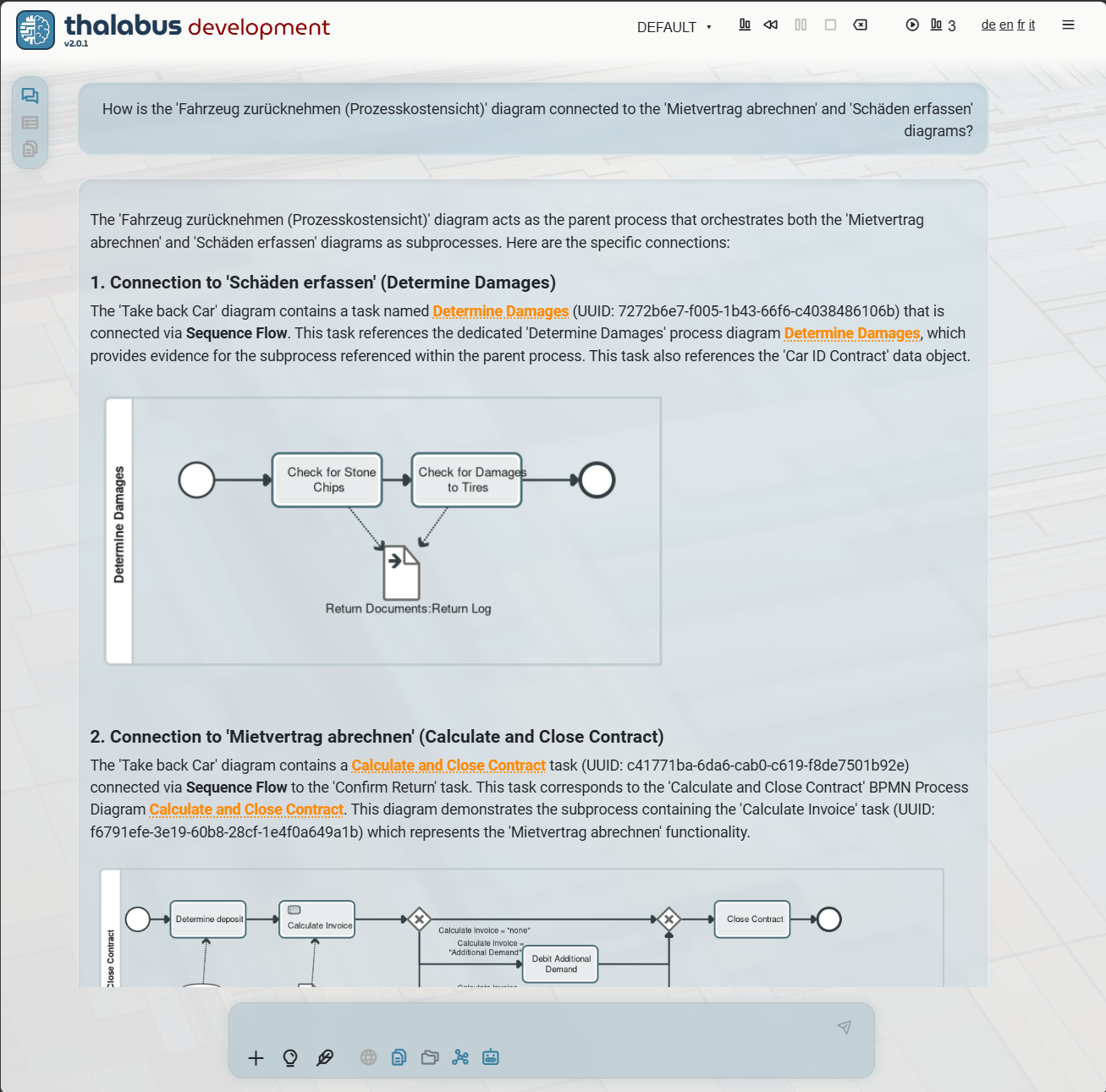
 Click the image to zoom.
This is a sample screenshot showing the thalabus documentation hub with the new screenshots carousel feature. The carousel displays images with optional captions on the right side when a .txt file is available.
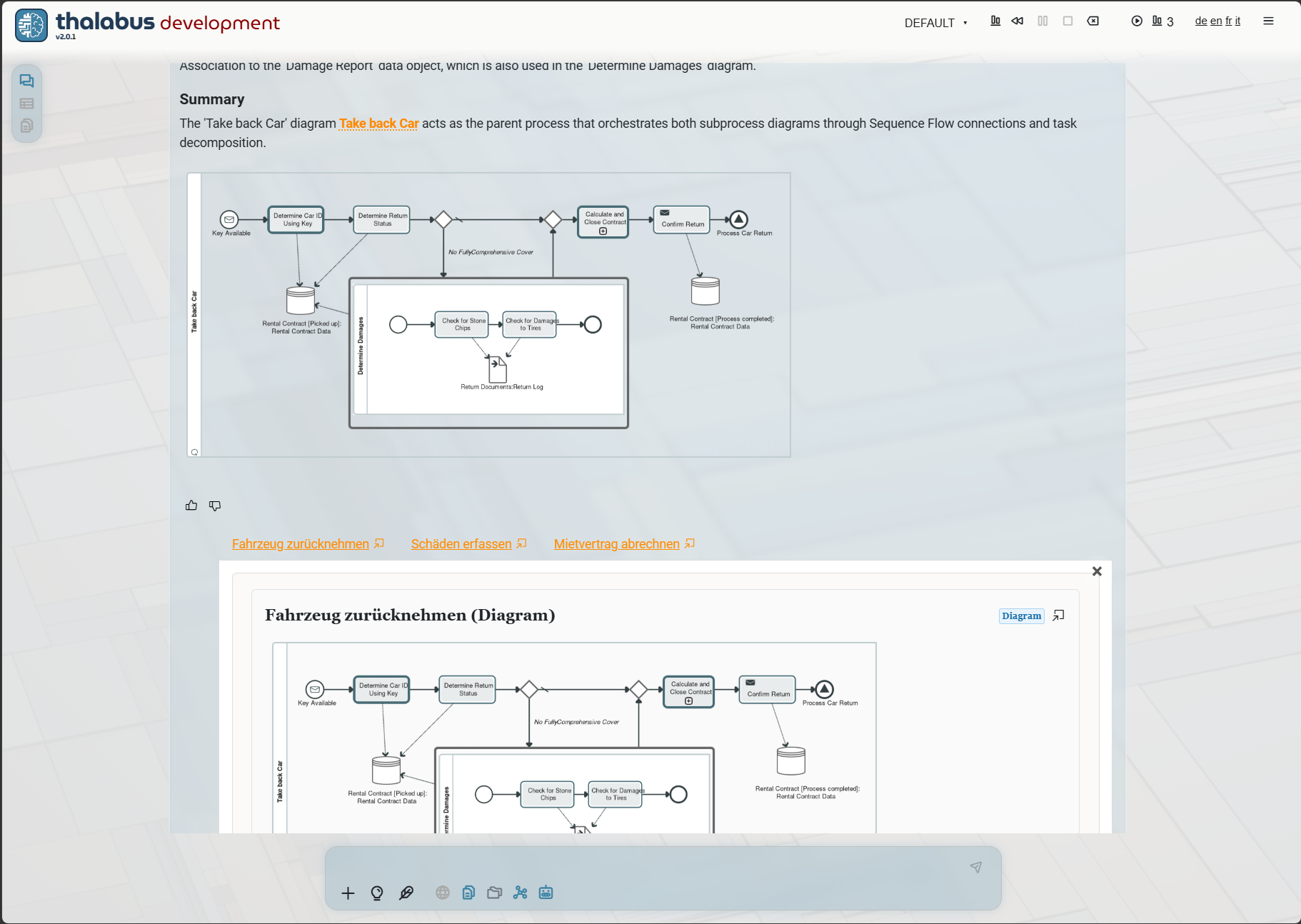 Click the image to zoom.
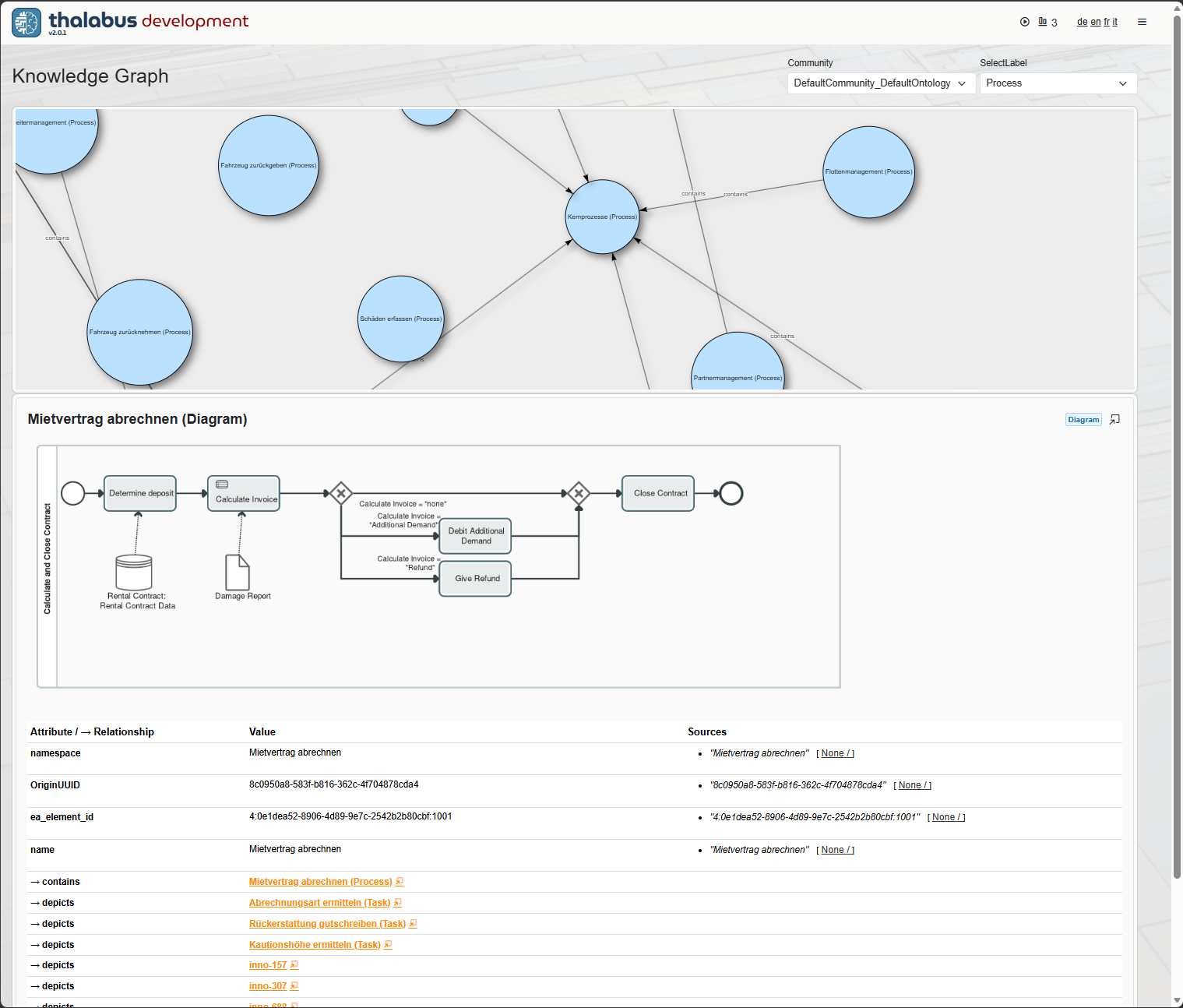 Click the image to zoom.
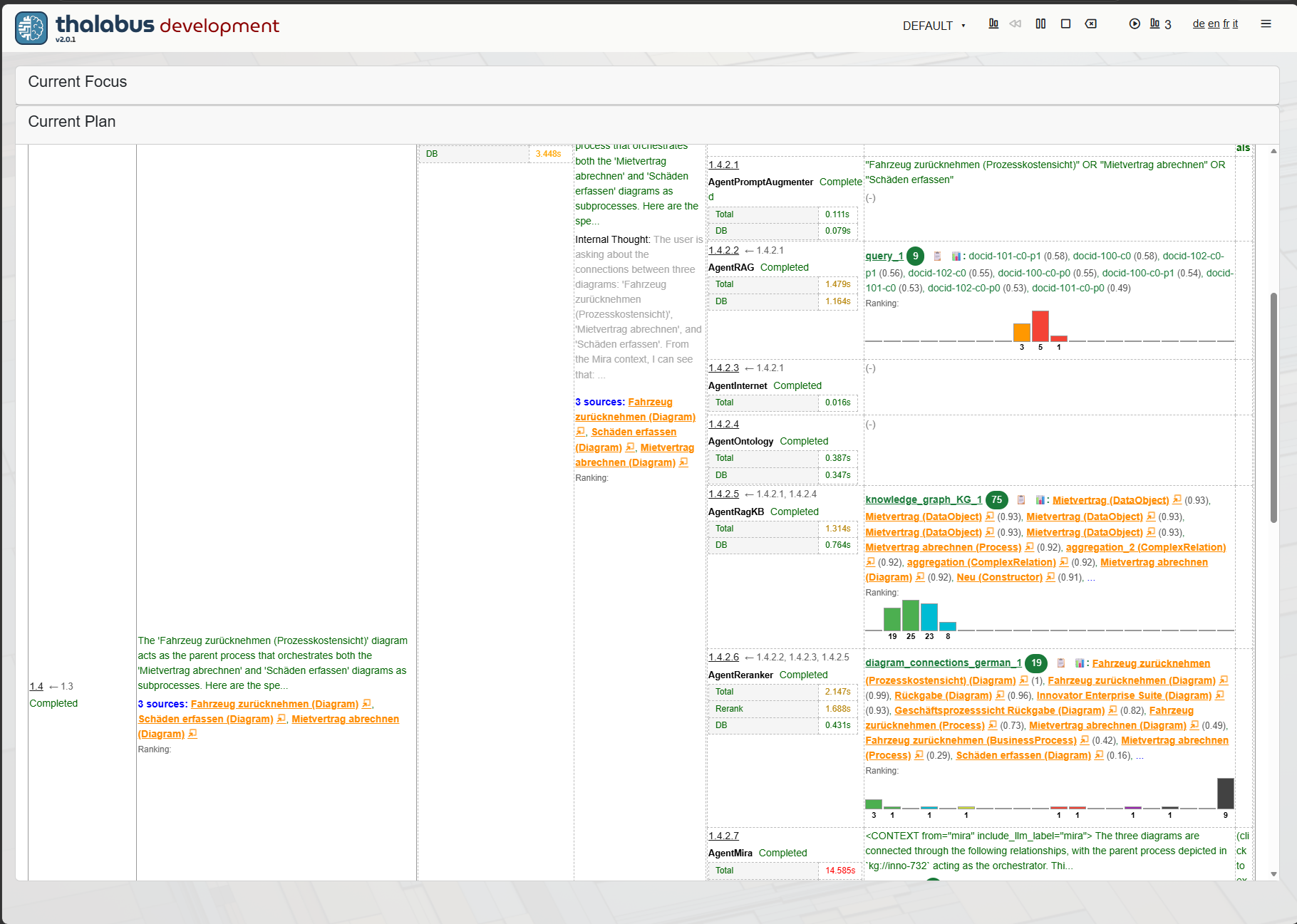 Click the image to zoom.
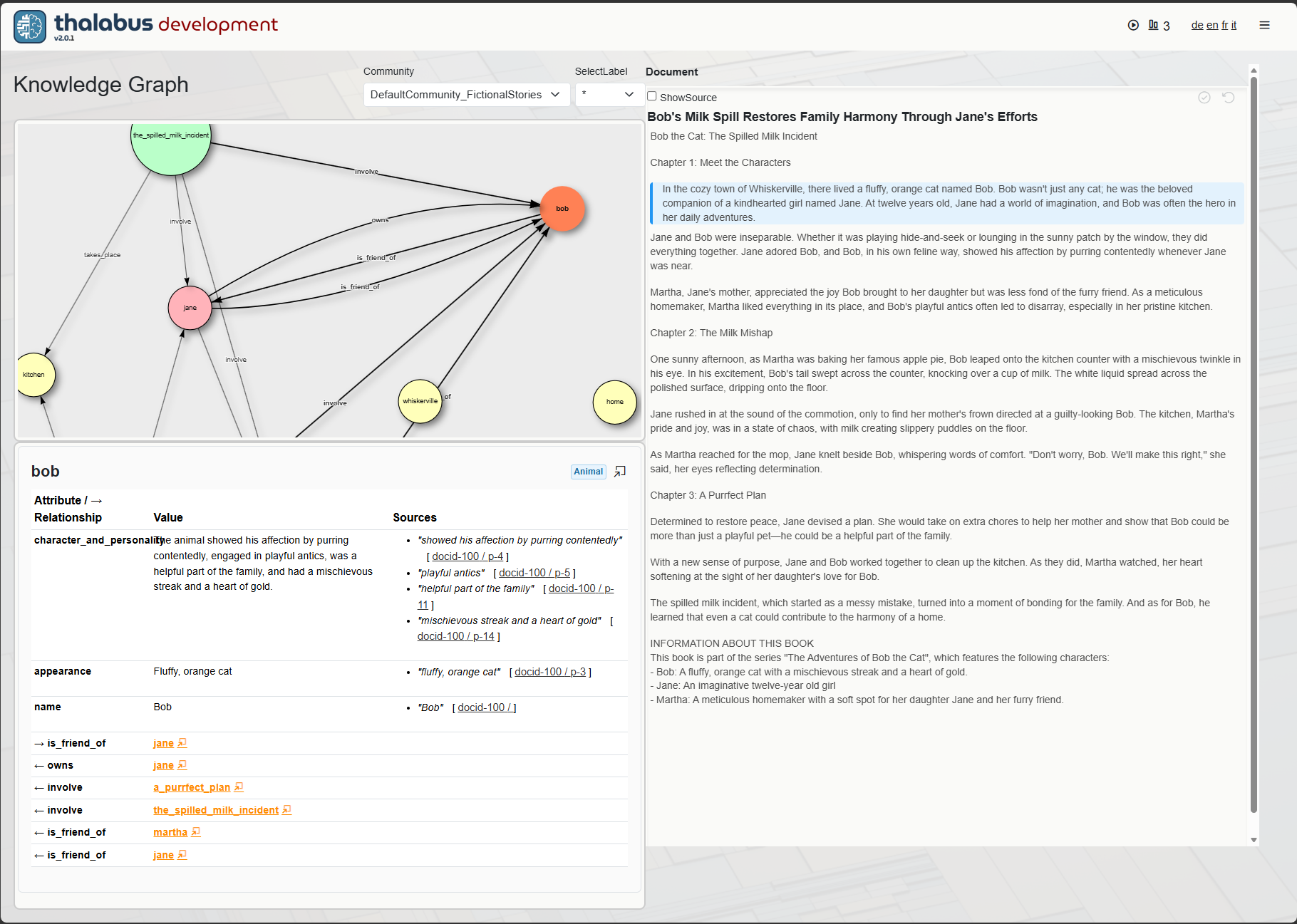 Click the image to zoom.
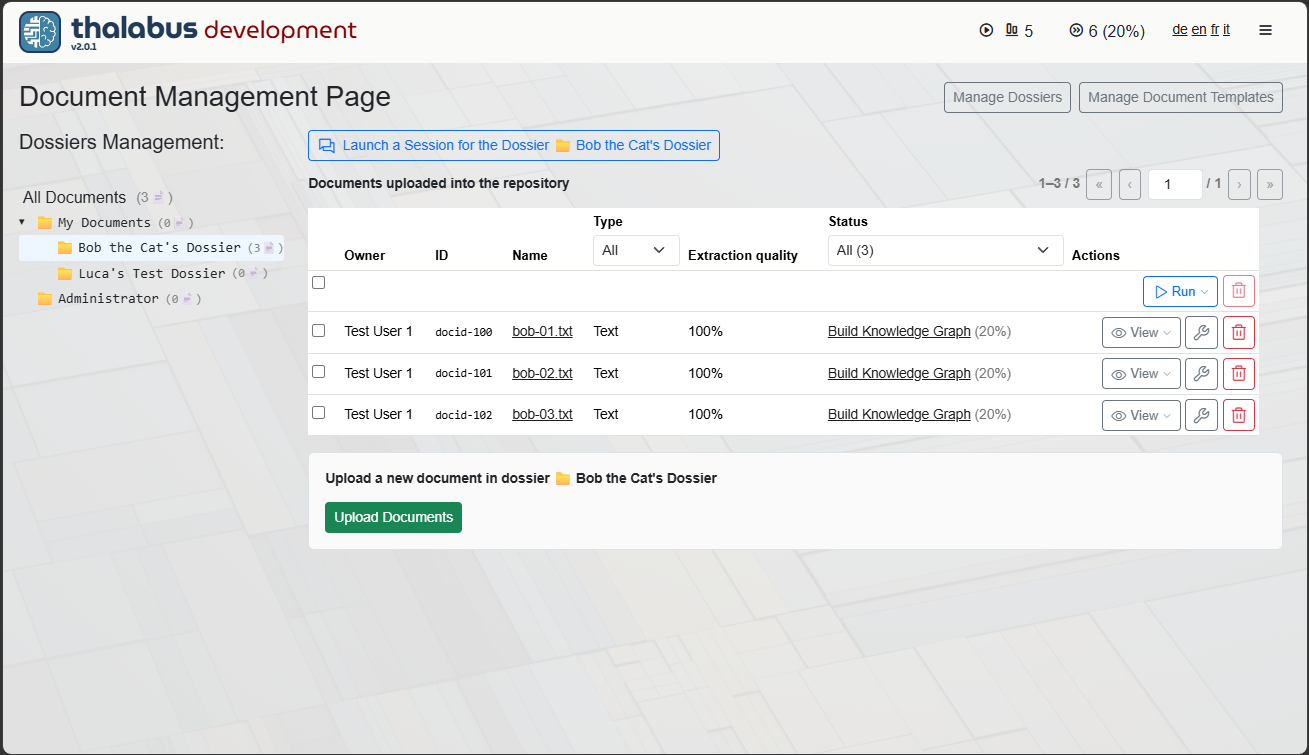 Click the image to zoom.
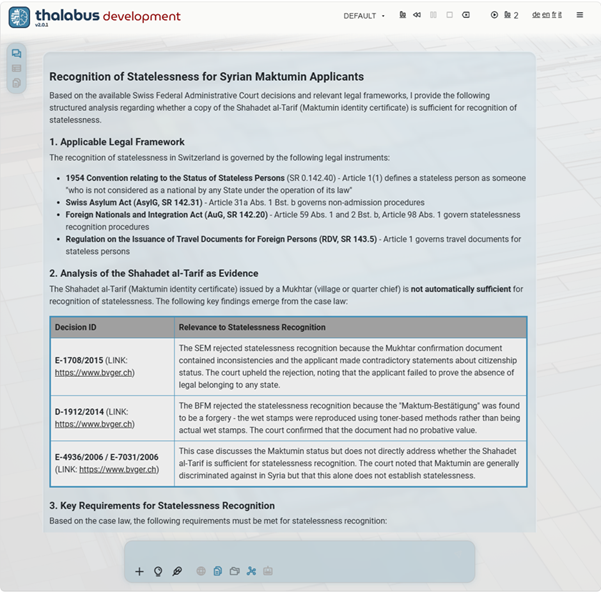 Click the image to zoom.
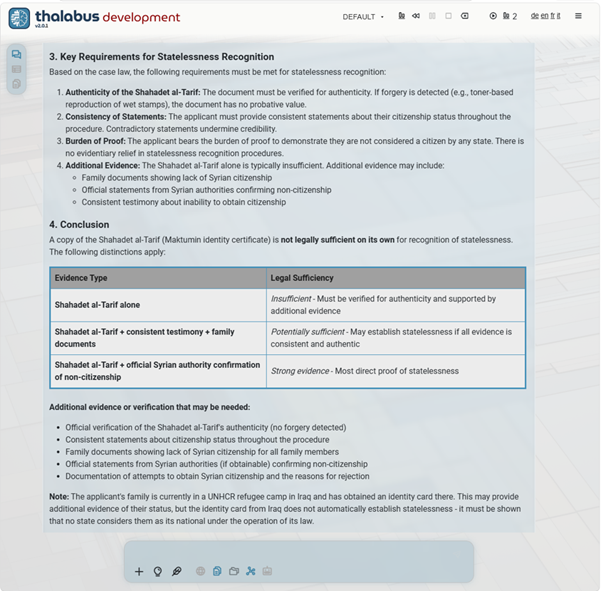 Click the image to zoom.
 Click the image to zoom.
 Click the image to zoom.
 Click the image to zoom.
 Click the image to zoom.
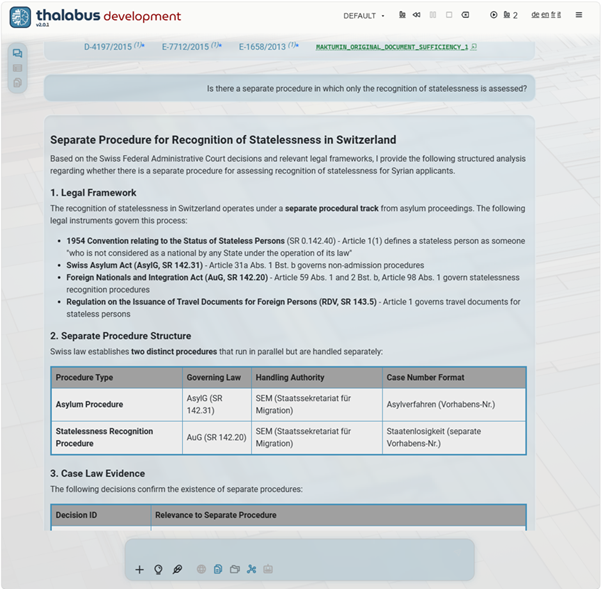 Click the image to zoom.
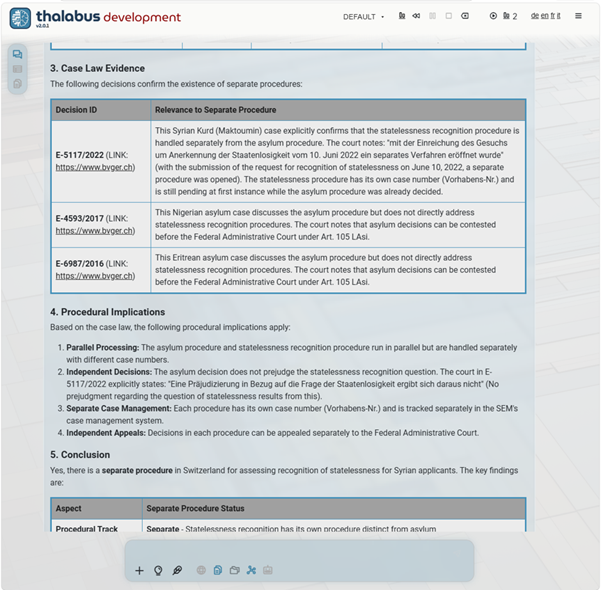 Click the image to zoom.
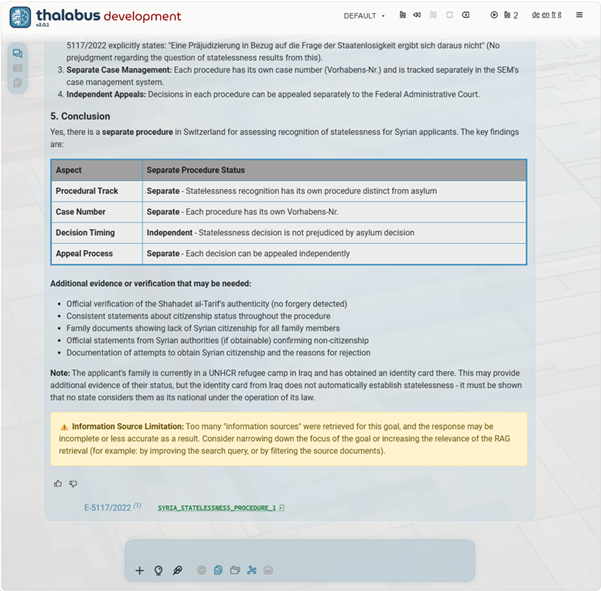 Click the image to zoom.
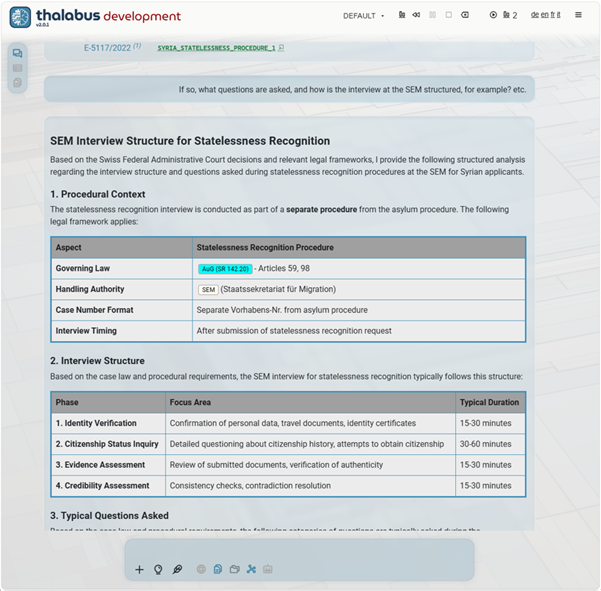 Click the image to zoom.
 Click the image to zoom.
 Click the image to zoom.
 Click the image to zoom.
 Click the image to zoom.
 Click the image to zoom.
 Click the image to zoom.
 Click the image to zoom.
 Click the image to zoom.
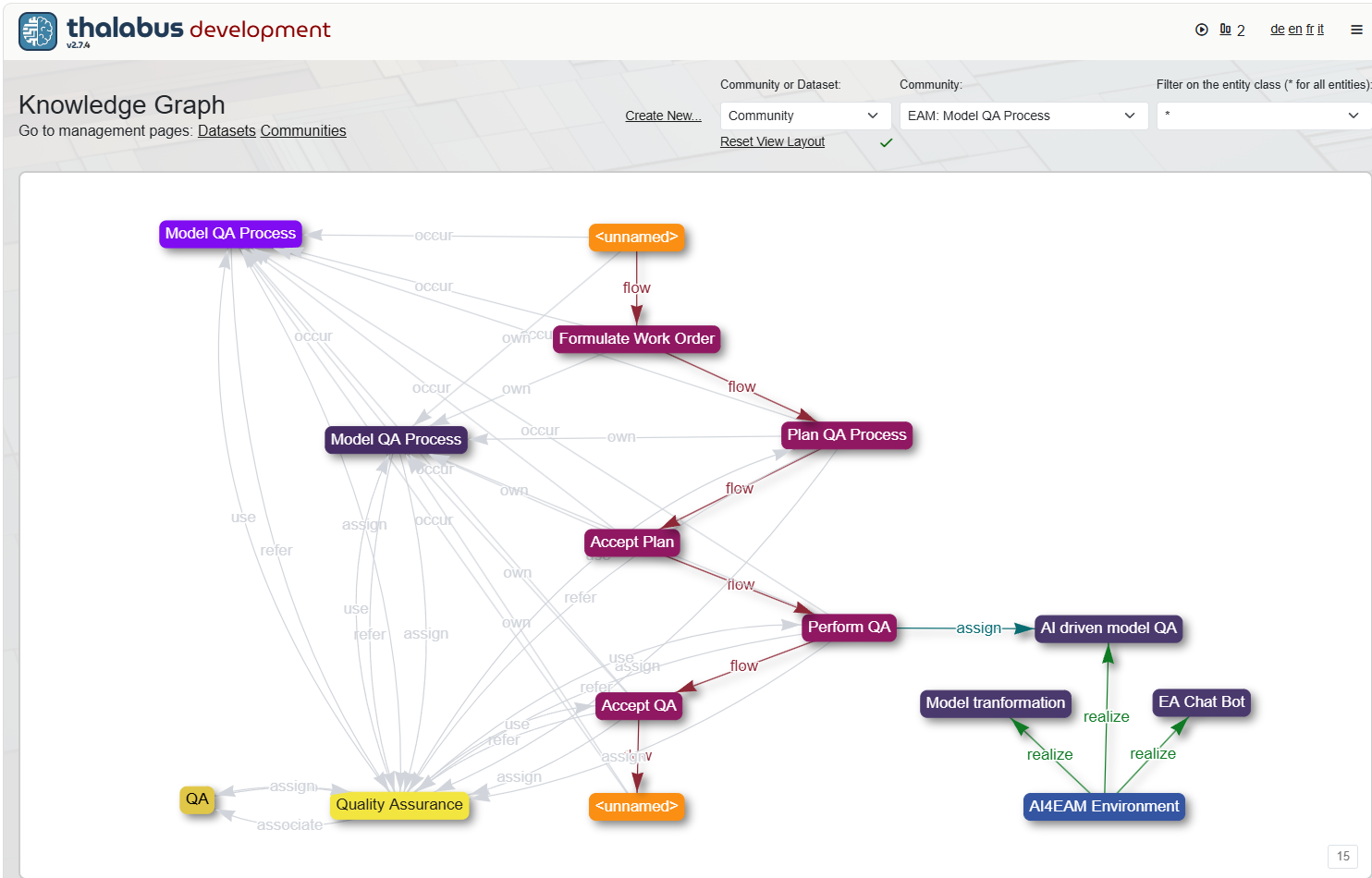
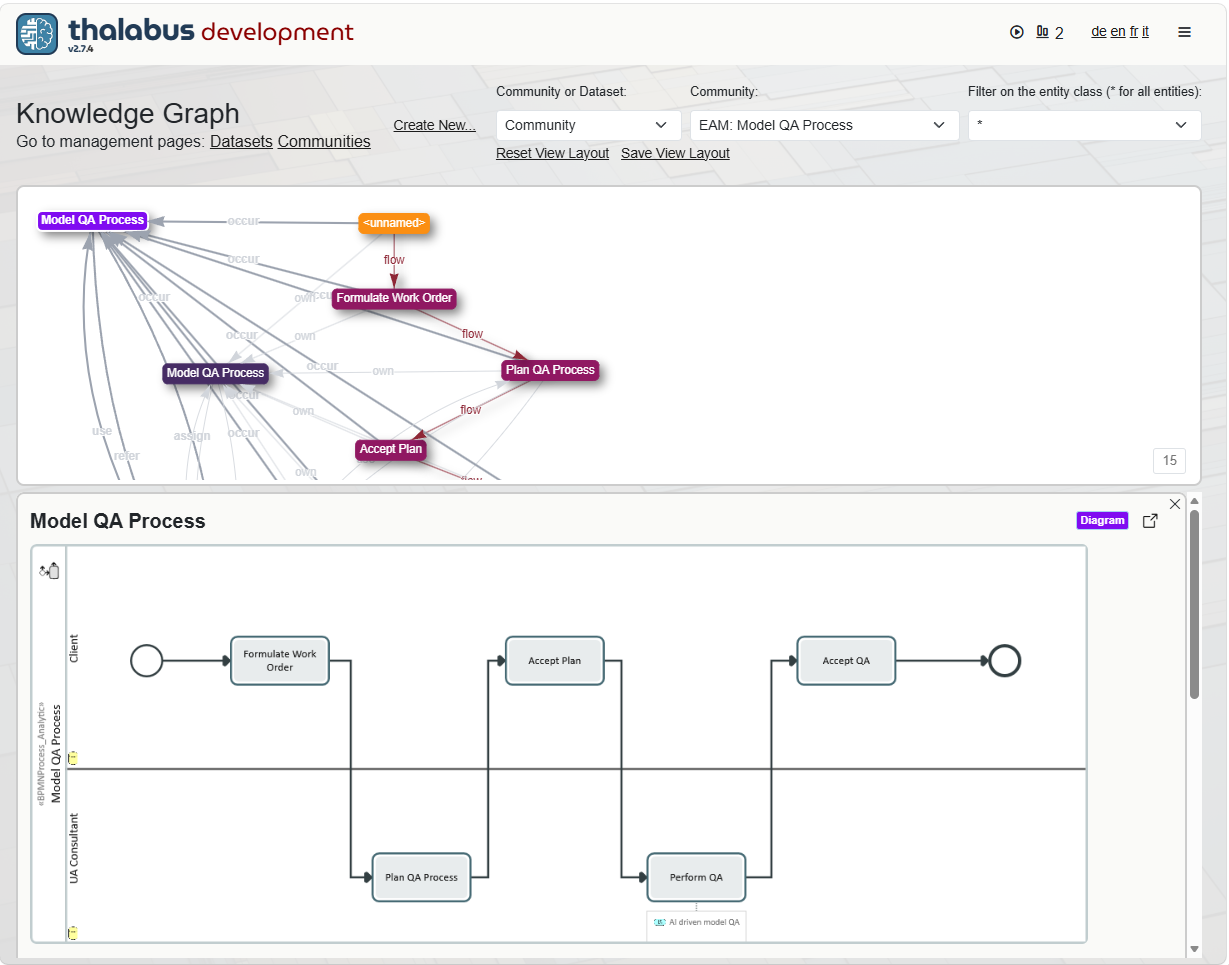
This knowledge graph represents the EAM Model QA Process and its related business-process entities. The process begins with an unnamed source element and flows through Formulate Work Order, Plan QA Process, Accept Plan, Perform QA, and Accept QA. These activities are connected to the Model QA Process, Quality Assurance, and QA through occur, own, use, assign, refer, and associate relationships.
The graph also shows the AI4EAM Environment connected to an AI driven model QA, Model transformation, and EA Chat Bot through realize relationships. The Model QA Process therefore links operational quality-assurance activities with model transformation and AI-assisted QA capabilities.
 Click the image to zoom.
Selecting a node in the EAM knowledge graph above opens a detailed panel below the graph.
When the selected entity has an originating model, the panel displays the original diagram or model representation, such as a UML, BPMN, ArchiMate, or other supported diagram. This links the graph entity back to the source artifact and provides additional context for understanding its structure, role, and relationships.
 Click the image to zoom.
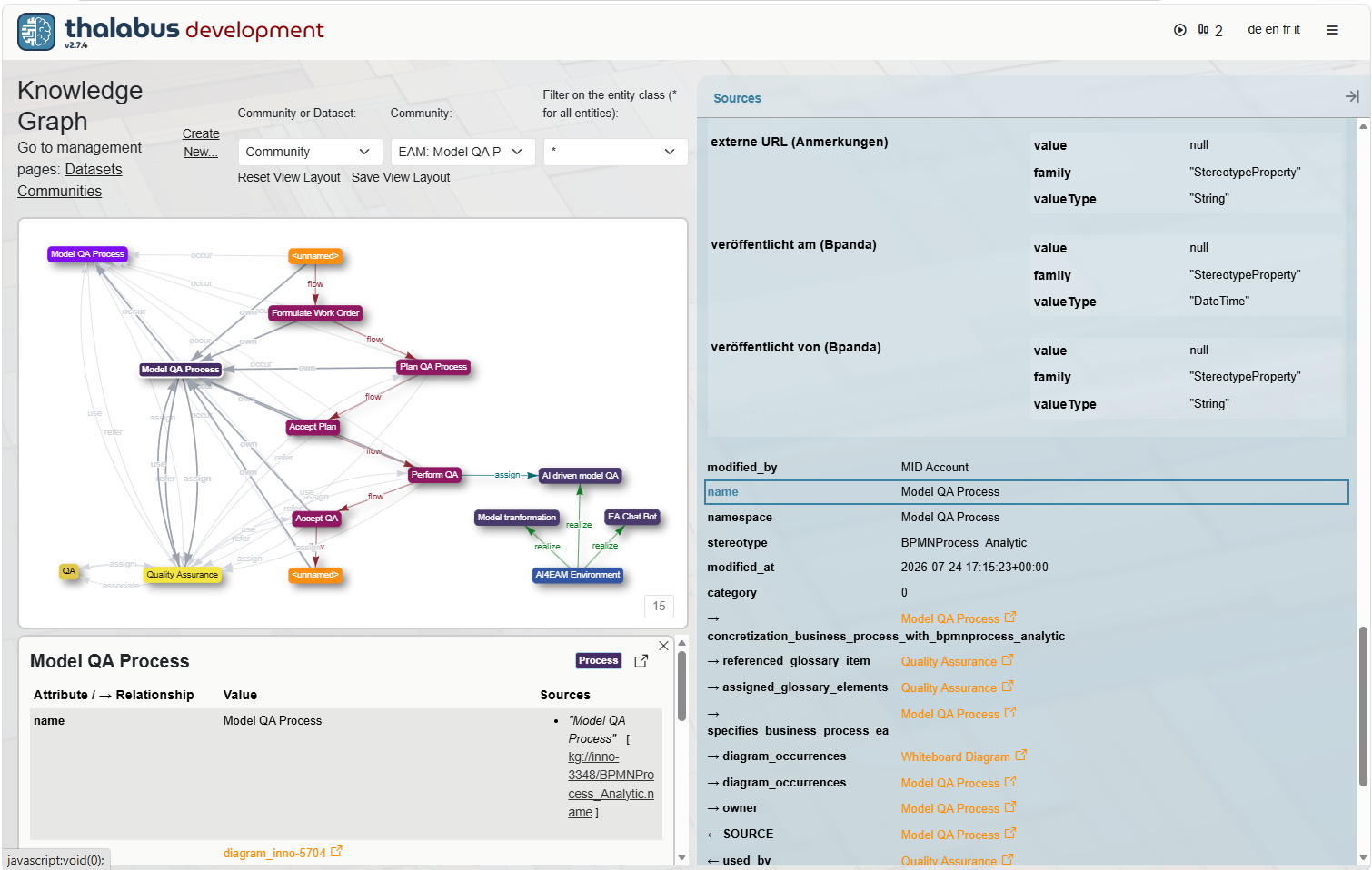
The lower-left detailed panel displays the attributes of the selected node. These attributes were sourced from the original BPMN tool and include the node's name, type, relationships, and other available metadata.
Clicking a source link in the detail panel opens the corresponding original data in the Sources panel on the right, allowing the graph entity and its source information to be inspected together.
The knowledge graph is constructed through AI-based consolidation of inputs from multiple original sources, including EAM tools, documents, Confluence pages, databases, and other enterprise repositories. This consolidation brings the entities, relationships, and supporting source information together in one connected model.
 Click the image to zoom.
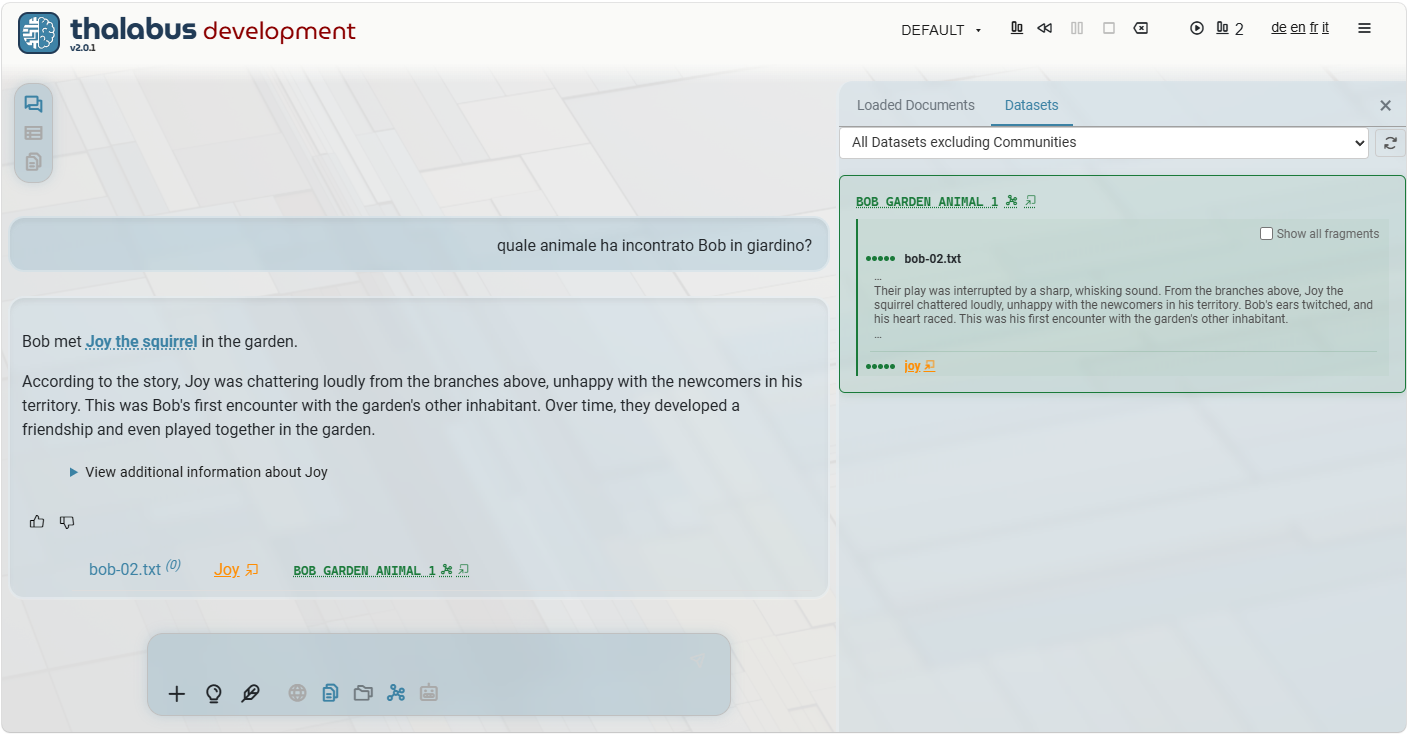
In this screenshot, the user asked a question in Italian: "Which animal did Bob (the Cat) meet in the garden?" The response provided was: "Bob met Joy the Squirrel in the garden [...]".
"Joy the Squirrel" is a hyperlink, pressing which the next screenshot will show the document source, with the paragraph highlighting the encounter between Bob and Joy.
Note in this screenshot, the user clicked on the green "BOB GARDEN ANIMAL 1" dataset link in the bottom of the answer, which opened the "Datasets" panel to the right, where all information sources are summarized. We see a preview of the relevant paragraph of the document source bob-02.txt, which introduced Joy the Squirrel. Also here, a click of the mouse conducts to the second screenshot (see next page).
 Click the image to zoom.
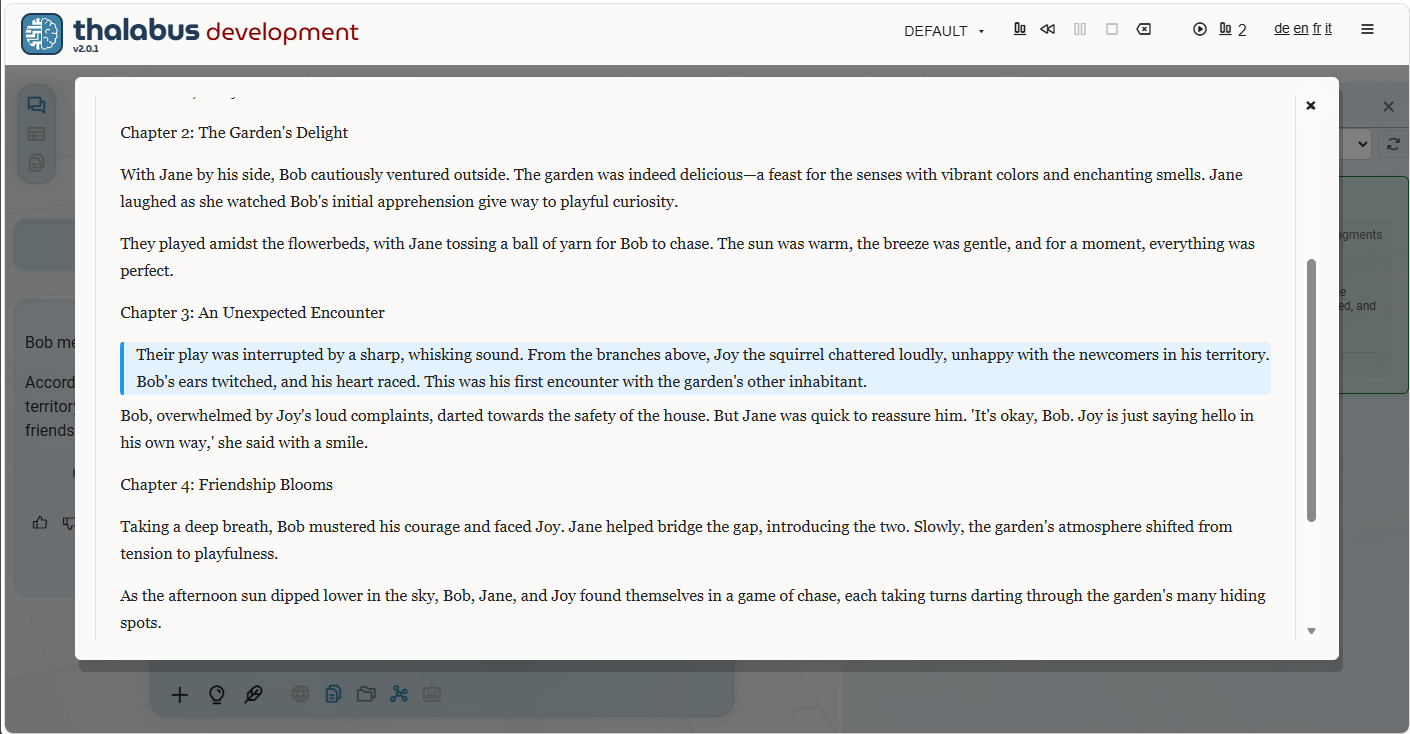
In this screenshot the document source is shown, with the paragraph highlighting the encounter between Bob and Joy.
The full document can be seen by scrolling up or down.
 Click the image to zoom.
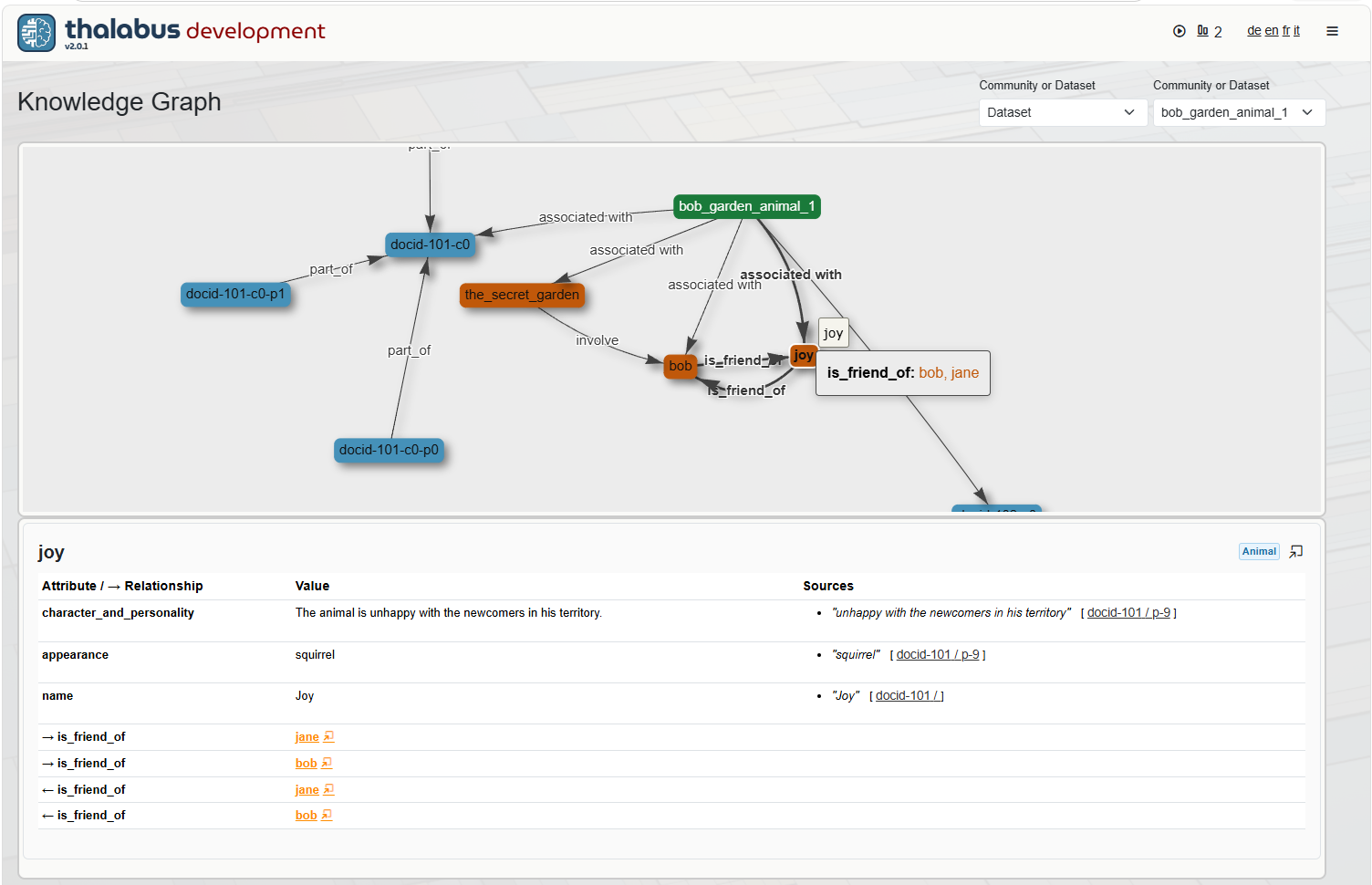
This screenshot opened when the user clicked on the "Show Graph" icon next to the green dataset BOB GARDEN ANIMAL 1 link in the answer.
The graph shows all information sources that were relevant to provide the answer in the chat window, notably the documents (blue nodes) and their chapters and paragraphs (connected blue nodes), and the knowledge graph entities (orange nodes) with their relationships.
When the user clicks on a document node, the document is shown as in the previous screenshot, with the relevant paragraph highlighted. The user can scroll up and down to see the full document.
When the user clicks on a knowledge graph entity node, the entity is shown in the bottom panel, with its relationships to other entities and to the documents that mention it, along with all entity attributes.
If the user right-clicks on a node, a context menu is shown with options to browse further connected nodes (therefore leaving the area of the current answer to explore the graph further).